
Create a Guest Network
Create and share a safe WiFi network for your guests.
1
Home Screen
Tap the “Network” tab at the bottom of the Home screen to navigate to the Network screen
2
Network Screen
In the “Wi-Fi Networks” section, tap “Add Network”
3
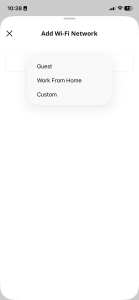
Add Wi-Fi Network
Choose “Guest” from the “Network Type” dropdown menu.

4
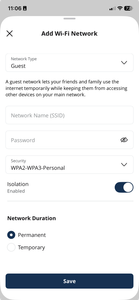
Set Up Network Information
Network Name: Enter the name of the wireless guest network as you want it to appear for your guests
Password: Enter the password you would like guests to use to access this network
Security: We recommend using the “WPA2-WPA3-Personal” option from the dropdown menu.
Isolation: Enabling this security option will prevent devices connected to your guest network from being able to access devices on your home network, or other guest devices on your guest network.
Network Duration: Select “Temporary” if you would like to define a scheduled time window for the network to be available to guests. Selecting “Permanent” will keep the network available until you choose to manually remove it.

5
Save Settings
Tap the “Save” button at the bottom of the screen to save your guest network settings.
Support
For additional help, contact our support team at 218-454-1234.
