
Polycom Sidecar – Programming Instructions
How to program your Polycom sidecar
1
Log In
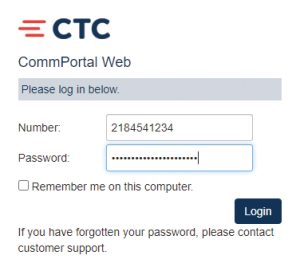
Log into portal.brainerd.net
Use your 10-digit DID number (no spaces or dashes).
Enter your CommPortal password where indicated in the login box.
Note: Found on your programming sheet under the column labeled CommPortal Password
2
After Login
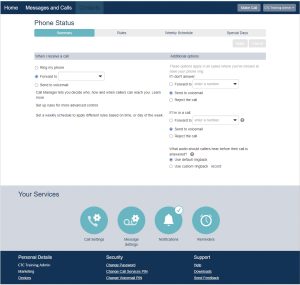
A number of options will appear, click on “Devices” in the bottom left.
If you do not see “Devices” please be sure to scroll to the bottom of the webpage.
3
Set Keys
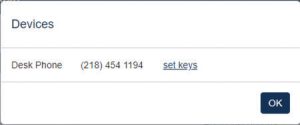
Select “Set Keys”
4
Phone Image Window
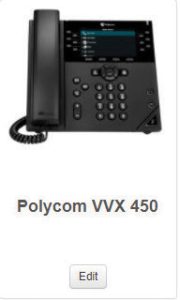
A new window will populate with an image or images of your phone.
Click anywhere on the phone or select the “Edit” button.
5
Configuration Screen
This will bring you into the configuration screen. dif you have a sidecar, that will appear below your phone.

6
Programmable Keys
Select the “Programmable Keys – Line” or “Programmable Keys – Bottom”.
Select th ekey you wish to program.

7
Drop Down Menu
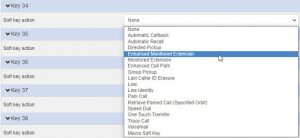
Select from the drop down menu that appears:
- Enhanced Monitored Extension
- For extensions within your business group, select “Enhanced Monitored Extension”
- Allows you to one-touch transfer to the extension and/or see if a team member is on their phone.
- Speed Dial
- Be sure to enter the number exactly as you would need to dial it. (i.e. ALL long distance numbers must have a 1 + number OR ALL local calls must be a 10-digit number which includes the area code + number.)
- NOTE: Enter the number as if you were calling the number. If you must dial the full 10 digit number, you enter that. If you need to dial 1, then the number, then make sure to have a 1 in front.
- One Touch Transfer
- One Touch Transfer allows you to transfer a caller to a number outside your business group. You can NOT call the number directly with this feature you can ONLY transfer an active caller to this number.
8
Labeling a Number
Fill in the telephone number, no dashes or spaces, and label it to be descriptive to you.
If you must dial the number with 1 and area code, you will need to enter that here.

9
Save Changes
After you are done making all of the changes you want, select “Save Changes” at the bottom.
Note: If the check mark in the bottom right indicates “update phone(s) immediately when saving,” the phone may or may not take the update automatically. If it does not, you may need to manually update the phone or wait 24-hours for the phone to re-sync with the switch.

10
Closing and Logging Off
Close out of the pop-up window.
Log off by selecting your name from the top-right of the screen. Then select “Logout”.
Update the Configuration on Your Phone
If your phone requres updating for changes to take effect, use these steps to do so:
Update Settings
1
Press the Home button
2
Use the directional pad to highlight “Settings”
3
Press the Select key (center of the directional pad)
4
Press the Select key on “Basic”
5
Use the arrow down key to “6 Update Configuration”
6
When asked if you are sure, select “Yes”
Restart Phone
Press and hold the 3, 1, 0 keys simultaneously until the phone beeps.
Support
For additional help, contact our support team at 218-454-1234.
