
Changing Call Routing to Auto-Attendant Hunt Group Lines
1
Log In
On the main log-in screen, scroll to find the telephone number you need to adjust
On the Actions dropdown arrow next to the telephone number, select “View Individual Settings”
Warning: Do not choose the “Reset Line” option as ALL settings for the phone will be wiped out. If a business group administrator does this, there is a $37.50 reprogramming fee billed to the account.
2
Call Manager
Click on the “Call Manager” tab.
Click on the area “set up new rules”

3
Rules
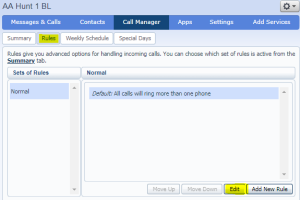
On the following Call Manager tab, click the Rules tab
Click on the Edit button
4
On the next screen, click the Next button

5
Edit Rule
The following screen shows how the rules are currently set up.
To remove an extension you can click on the X on the right of the extension.
To add an extension you will want to click on the drop down menu to add a phone number.
You can enter the 4-digit extension, 7-digit local phone number and/or 1+10-digit number if routing to a long distance line.
The next step would be to indicate the rings (or seconds) for each extension to ring. You can see in the example extension 0731 is ringing for 6 rings. Extensions 2385 & 2388 start ringing on the 4th ring through the 6th ring with extension 0731.
If no answer the caller is routed to the voice mail box on extension 0731 which is indicated with the # before the extension number in the last command.
If you add a number you have to indicate when in the cycle that number should be ringing.
NO changes will be saved if you don’t click the button Add before ending by clicking the button Finish.

Support
For additional help, contact our support team at 218-454-1234.
