
ACD Monitor
Access Agent Monitor
1
Log In
Go to https://portal.brainerd.net/bg/
Select MLHG on the left and then click Supervisor Dashboard
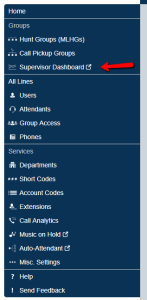
2
Select Agent
Select Agents on the left-hand side. Select the agent whose line you want to monitor, then click Monitor in the upper-right.

Agent Panel
Status Icons
The state that an Agent is in is displayed as an icon to the right of their name in the Agents panel on the left side of the screen. There are three possible icons.
- The Available icon indicates that this Agent is in an Available state and is not currently in a call.
- The Unavailable icon indicates that this Agent cannot currently take calls arriving from a Queue. However, they are still able to answer incoming direct-dial calls. This icon will pulse if the Agent is currently in the wrap-up state. The reason that the Agent is unavailable is given in parentheses.
- The In a Call – Unavailable icon indicates that this agent is in an Unavailable state, but is currently handling a call. This icon will pulse if the Agent is in the wrap-up state.
Monitoring Actions
If you select the radio button next to an Agent that is currently in an active call, three push buttons will appear at the top of the screen, giving you the choice of three possible actions.
- Monitor– listen in on the existing call between the selected Agent and the customer.
- Whisper– speak to or advise the selected Agent during the call, without the customer hearing.
- Barge-In– fully join the call, speaking to both the selected Agent and the customer.
Support
For additional help, contact our support team at 218-454-1234.
