
Adjust Holiday Schedules for Main Line & Auto Attendants
Login to CommPortal
1
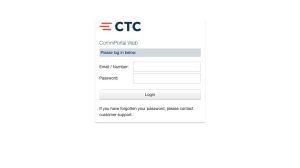
Navigate to https://portal.brainerd.net/bg
Phone System Configuration
If your phone system does not use an auto-attendant, follow the “Adjust Main Line Schedule” and “Logout” directions.
If your phone system rings directly to an auto-attendant during regular business hours, skip to the “Adjust Auto-Attendant Schedule” section.
If your phone system rings a main line and uses an auto-attendant after regular business hours, follow this entire article to keep your Main Line and Auto-Attendant schedules in sync.
Adjust Main Line Schedule
Adjusting the Main Line schedule to reflect your holiday hours ensures the correct greeting is used for callers that try to reach you during holiday hours.
1
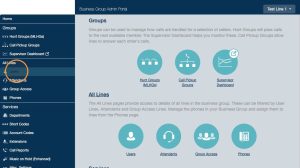
Click “Users”
2
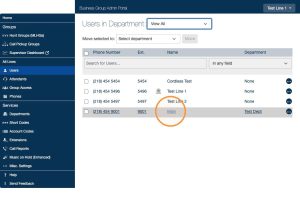
Click the name of you main phone line/number
3
In the pop-up, click “Open in New Window”

4
Click the “Special Days” tab

5
Select Dates for Closures
Use the calendar view to select specific dates you plan to be closed.
Note: While many holidays are added to this schedule automatically, “observed holidays” are not. If you plan to be closed on a Monday or Friday for a weekend holiday, you will need to select the applicable week days in the Special Days scheduler.

6
Partial Days
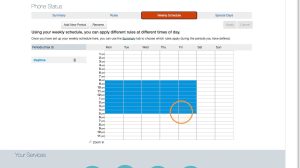
If you intend to be closed for a partial day, use the weekly schedule to specify what specific hours you are open and closed.

7
Change the highlighted selection to reflect what specific hours you will be closed.
Note: Blue is open, White is closed
Note: The weekly schedule will repeat every week. If you change this schedule and do not want it to be repeated, you will need to log back in on the following week to reset this schedule to it’s original configuration.
8
Save Changes
Click “Apply” to save your changes
Close the pop-up window to return to the CommPortal admin panel

Adjust Auto-Attendant Schedule
1
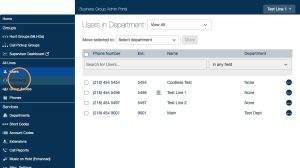
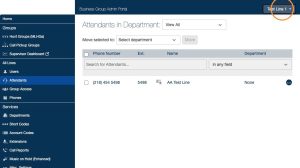
Click “Attendants”
2
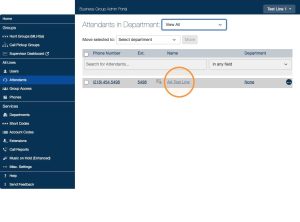
Click on the name of the Auto-Attendant you wish to edit
3
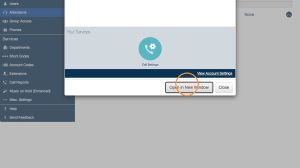
Click “Open in New Window”
4
Click the “Schedule” tab

5
Adjust Partial Days
Use the “Daytime” scheduler to adjust hours for partial days.
If you set a custom schedule for your Main Line, set this schedule to match.
Note: Blue is closed, White is open
Note: The weekly schedule will repeat every week. If you change this schedule and do not want it to be repeated, you will need to log back in on the following week to reset this schedule to it’s original configuration.

6
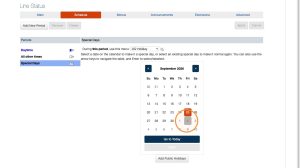
Adjust Special Days
Use the “Special Days” scheduler to mark specific dates as closed.
If you set a custom schedule for your Main Line, set this schedule to match.
7
Save Changes
Click “Apply” to save changes
Close the pop-up window to return to the CommPortal admin panel

Logout of CommPortal
1
When finished, click the account name at the top-right corner of the page
2
Clock “Logout” from the dropdown

Support
For additional help, contact our support team at 218-454-1234.
