
Changing the On-Call Phone Number – Simplified
1
Log In
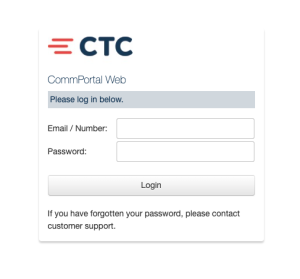
Navigate to: https://portal.brainerd.net
Log in using your 10-digit phone number without spaces or dashes
Enter your password
Note: You will find your password on the programming sheet provided at training
2
Main Screen
The shown screen will open upon login
Select the Menu tab

3
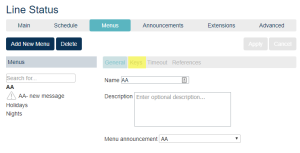
Menus Screen
Select the Keys tab as shown
4
Make Adjustments
Find the auto-attendant option/phone number you want to adjust.
In this case for the caller to reach the emergency option they would push 5.
On the following screen you will change the phone number across from option 5.
Remember the number has to be entered as you would dial it. All long distance numbers should be entered with a 1 + Area Code + 7-digit phone number.
When done updating click on Apply
Click “Close”

5
Log Out
Select the dropdown at the top-right of the page
Click “Logout”
Support
For additional help, contact our support team at 218-454-1234.
