
Programming Instructions – Cisco
Program Your Cisco Sidecar
1
Log In
Log in to portal.brainerd.net with your CTC phone number and password.
Use your 10-digit number, no spaces or dashes.

2
After Login
A number of options will appear, click on “Devices” in the bottom left.

3
Set Keys
This will populate a pop-up window asking you to select which device (if you have multiples). Select “Set Keys”

4
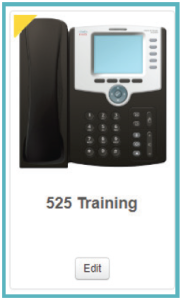
Phone Image Window
A new window will populate with an image of your phone.
Click anywhere on the phone or select the edit button.
Note: In most cases, you will only have one phone to choose from.
5
Programmable Keys
Click on the button that you wish to set for a key.

6
Drop Down Menu
Select the drop down menu that appears either:
- For extensions within your business, select “Enhanced Monitored Extension”.
- All other numbers, you will use “Enhanced Speed Dial”.

7
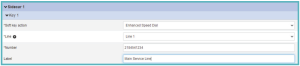
Labeling a Number
Select the line you want to call this number from. In most cases, this will be Line 1.
Fill in the telephone number, no dashes or spaces, and label it to be descriptive to you.
If you must dial the number with a 1 and area code, you will need to enter that here.
8
Save Changes
After you are done making all of the changes you want, select “Save Changes” at the bottom.
Note: If the check mark in the bottom right indicates “update phone(s) immediately when saving,” the phone may or may not take the update automatically. If it does not, you may need to manually update the phone.

9
Closing and Logging Off
Close out of the pop-up window.
Log out from the upper right of the screen.
You must reboot your telephone before the changes will take effect. (see next section)

Update and Configuration on Your Phone
Cisco 514
- Press the Settings button
- Use the arrow button to highlight “12 Reboot”
- Press the select key
- Press the “OK” softkey when prompted on the screen with the following: Confirm System Reboot?
Note: The phone will go through a 2-step process of rebooting. After the first time, it will appear functional, but will reboot one more time.
Cisco 525
- Press the Settings button
- Use the arrow key to highlight “9 Device Administration”
- Press the Select softkey
- Use the arrow button to highlight “4 Restart”
- Press the Select softkey
- Press the OK softkey when prompted on the screen with the following: Do you want to reboot the system?
Note: The phone will go through a 2-step precess of rebooting. After the first time, it will appear functional, but will reboot one more time.
Support
For additional help, contact our support team at 218-454-1234.
