
MaX UC Desktop – Quick Start Guide
You can use your CTC phone service to make or receive calls from your desk phone, your PC or Mac, and your mobile devices.
For this to work on your desktop, you need to install the MaX UC Destop software on your PC or Mac. This guide helps you do that.
Ensure your computer is compatible
MaX UC Desktop is supported on Windows 10 or 11 and Mac computers running macOS 10.15 (Catalina) or later.
You can use your computers built-in microphone and speakers, but you will have much better audio quality if you use a headset. MaX UC Desktop works with most common headsets, including Bluetooth variants. It will even work with the answer/reject call button on some headsets.
Find your password
You need your CTC CommPortal phone number and password to start using MaX UC Desktop. If you don’t have this information, email us at businessvoice@goctc.com.
Download and install the software
Download MaX UC Desktop from portal.brainerd.net
Login to your CTC CommPortal. Go to the lower-right corner and select Downloads. Select On your Computer, then MaX UC and select the operating system you are on. (Please note, the Windows 10 option also works for other versions of Windows.)
When prompted, save the file. The program will begin to download. Open the file when the download is complete at the bottom of your web browser and follow the on-screen instructions to install the software. If your file isn’t showing in your web browser, find the file in your downloads folder.
Exploring MaX UC Desktop
MaX UC Desktop is like having your desk phone on your computer. You can make and receive calls, hold calls, transfer calls, and make three-way calls.
You can also use MaX UC Desktop to send instant messages, transfer files, and send Presence information to other people in your corporate directory who are using MaX UC Desktop (on any device).
MaX UC Desktop uses the WiFi, broadband, or mobile data services available and connected to your computer.
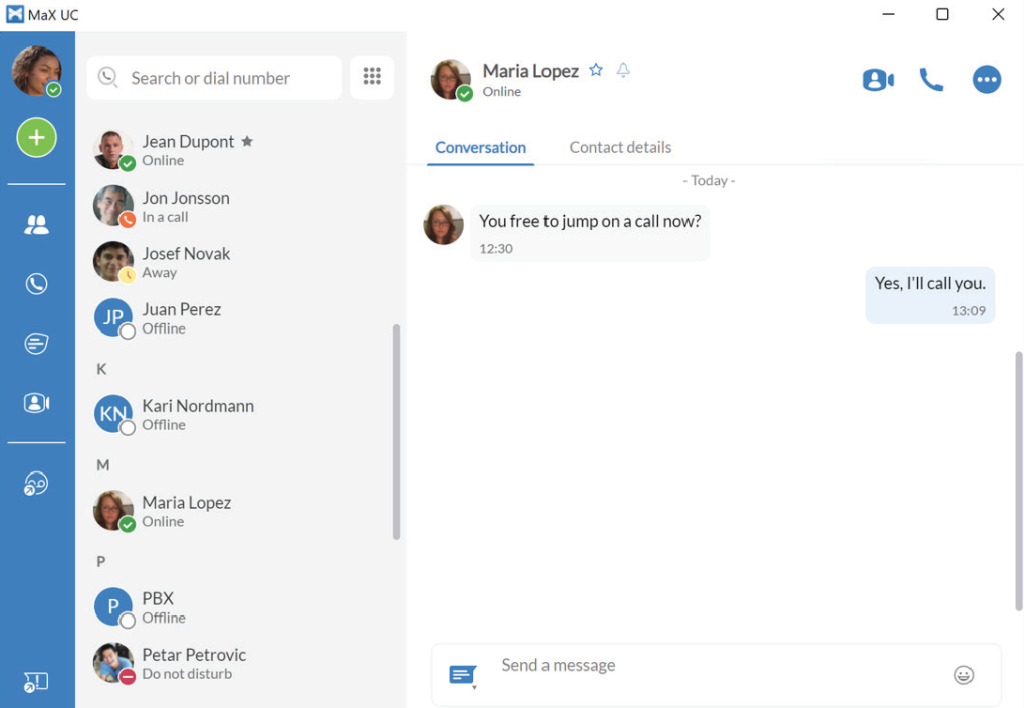
Changing Avatar
The avatar drop-down menu (the very top left icon usually with your initials) includes options to: Set custom status, Change avatar, Change password, and Check for updates.
Depending on the services configured for your account, the avatar menu also contains a link to your Apps.
Settings
Select your avatar and select Settings to access your General Settings, Calls, Chat settings, or test your Audio.
Add
Select the green Add icon to start a New call or New group chat, or Add contact.

Contacts

Select the Contacts tab to view your list of contacts. Depending on how your service is set up, the contact list may include:
- Contacts saved directly to MaX UC Desktop
- Contacts in the Outlook or Mac address book stored locally on your computer
- Contacts from CommPortal
- Contacts in your corporate directory
Select a contact and select the Contact details tab to view contact information and your call history with that contact.
Select the More icon to view chat history, add to favorites, edit contact, or delete contact.
Favorites
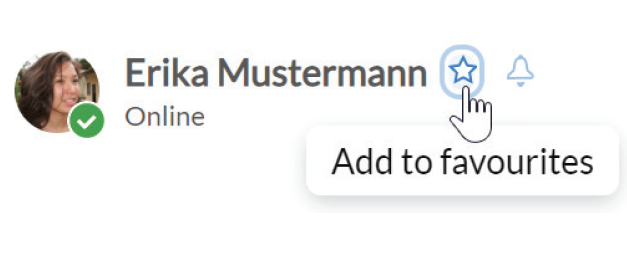
For quick access to frequently contacted people, click on the Star icon to add the contact to your Favorites.
Favorites appear at the top of the Contacts list.
Make a Call

On the Calls tab, select a contact and click the Call icon to call the contact. If your contact has more than one number, choose the number to call from the drop-down list.
You can also click on the Dialer and enter a number to call on the keypad.
If the person you are calling has Caller ID, they see your phone number.

During a Phone Call

While a call is in progress, you can use the call window to:
- Add a participant
- Transfer the call to another contact, number, or device with MaX UC Client installed, without having to hang up
- Send a chat message to the other person. (Only available if speaking to another user with the MaX UC app.)
- Put the call on hold
- Mute your microphone
- Adjust the volume
- Access the keypad
- Switch to another call
- Record the call
- End the call
During a call, you can make a second call using the main client rather than the active call window. This automatically puts the first call on hold. When the second call is active, you can click on the Transfer call icon to show the held call as a transfer option.
Receive a Call
When someone calls your number, you see a pop-up window appear on your computer screen and hear a ringing tone through your speakers or headset. The pop-up shows the number of the person calling you. If that person’s details are already in your contacts list, the pop-up displays the caller’s name.

Depending on the other services you have from CTC, you may see the incoming call on your desk phone, on your mobile phone, or on a tablet device. You can answer the call on whichever device is most convenient for you.
If the caller is also using MaX UC, you can reject a call and send the caller an instant message explaining why you can’t take the call. Select the drop-down list next to Reject and select one of the system messages, or select Custom Message to type your own message.
You may receive a call while you are already on another call. If you answer the new call, the current call is automatically placed on hold and the new call appears in a new call progress window. Switch between the two calls using the window for each one or select the Merge calls icon to merge other callers into a single call.
Chats

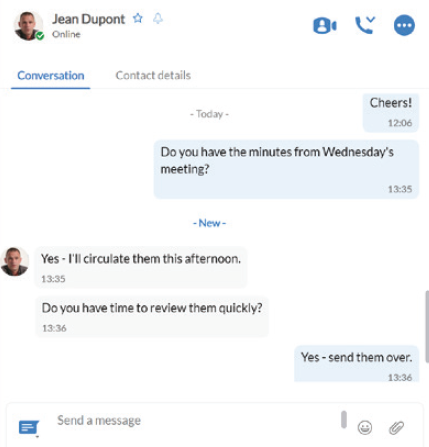
If you have MaX UC Desktop with Instant Messaging, click on the Chats tab and select a contact to send them an instant message, emoji, or file. You can also view your chat history with the contact on the Conversation tab.
If SMS texting is enabled on MaX UC, you can also send text messages to cell phones.
Call and Chat History
You can see your recent call history on the Calls tab and your chat history on the Chats tab. Click on a contact and select the Conversation tab to see your chat history with the contact or the Contacts details tab to see your call history with the contact.
Presence
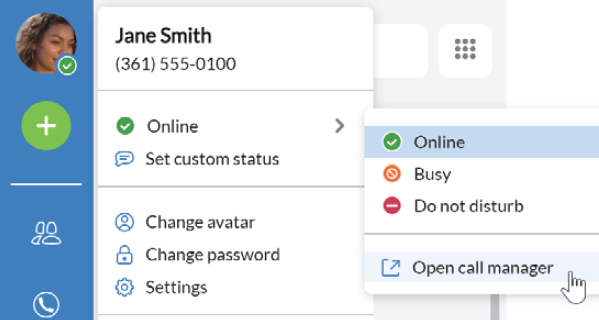
Select your avatar to set your status to Online , or Busy .
Select Set custom status to write your own status (maximum 100 characters) and select Save.
Your Presence information automatically shows when you are Away , In a call , In a Meeting (this references your Outlook calendar), or Offline .
Call Manager
You can select Open call manager from the status drop-down to access your Call Manager. (Select your avatar in the top left > Select Online (or other status) > Select Open call manager).
This will bring you to CommPortal on your web browser.
Call Manager Settings in CommPortal
You can specify how calls should be handled within CommPortal. You can change how you receive calls – Ring my phone, Forward to another number (like a cell phone), or Send to voicemail
You can also choose how the call is handled if you don’t answer or if you’re in a call.

Additionally, you can configure Call Manager by defining Rules, a Weekly Schedule, and Special Days.
Note that when you change your Presence or Call Manager settings, the change applies on all of your MaX UC Clients. So, if you step away from your computer and forget to update your status, you could change your status using MaX UC Mobile on your mobile phone instead.
Voicemail
If you have a voice message, the Voicemail tab indicates the number of messages received. Select the Voicemails tab to be directed to CommPortal on your web browser to view and listen
to messages.
Notifications

Go to your Mac or Windows system notification settings and select the MaX UC app to configure your MaX UC Desktop notification preferences.
Accessibility
MaX UC Desktop supports the use of a screen reader.
Use Tab and the arrow keys to navigate through the application. You can also use the following shortcuts during a call.
- Ctl-Alt-Shift-A to answer an incoming call.
- Ctl-Alt-Shift-H to end a call or reject an incoming call.
- Ctl-Alt-Shift-P to end a call or answer an incoming call.
- Ctl-Alt-Shift-M to mute or unmute your microphone.
Emergency Calls
MaX UC Desktop lets you make calls from anywhere on the most convenient device. If MaX UC Desktop cannot automatically determine your location, the app notifies you to update your location information registered with your carrier in case you need to make an emergency call.
Privacy and Protection
Once you have finished using MaX UC Desktop, select your avatar and select Quit to close the application. If you are using a shared computer, select your avatar and select Log Out to prevent other users from accessing your account.
To change your log-in preferences, select your avatar, select Settings and, on the General tab, untick Automatically log in to MaX UC Desktop; this prevents MaX UC Desktop from logging in automatically when started and ensures that the next user has to log in using their own credentials.
Support
For additional help, contact our support team at 218-454-1234.
