
MaX UC Desktop – User Guide
Download MaX UC
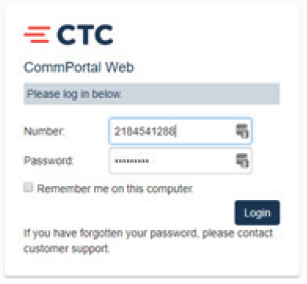
- Go to portal.brainerd.net
- Number: End user’s 10-digit phone number
- Password: Initial password provided by CTC
- Click “Login”
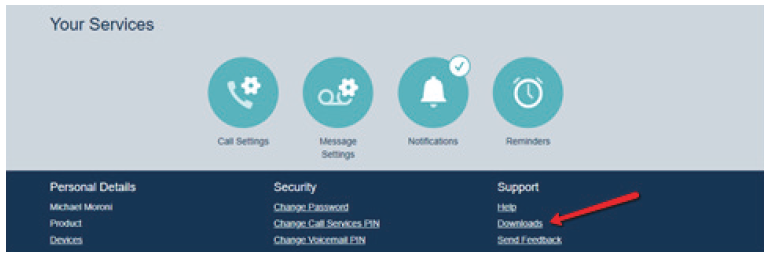
- Click “Downloads” at the bottom-right of the screen
- Click “View Apps”
- Click “MaX UC”
- Select the download to match the computer’s operating system [Windows 7/ Windows 8/ Windows 10] or [Mac OS X (10.7+)]
- Click “Run” to download and open the MaX UC Setup Wizard
- Complete the MaX UC Setup Wizard screens by clicking “Next” on each screen
- Click “Install” to complete the installation and add the MaX UC icon to the desktop
- Click “Finish” to complete the wizard and launch MaX UC
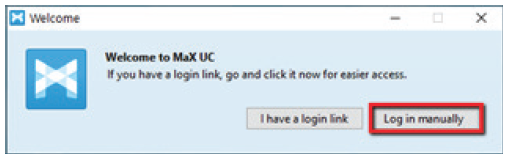
- When prompted, select “Log in Manually”
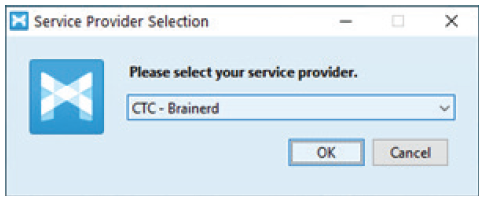
- Select CTC – Brainerd as the service provider and click “OK”
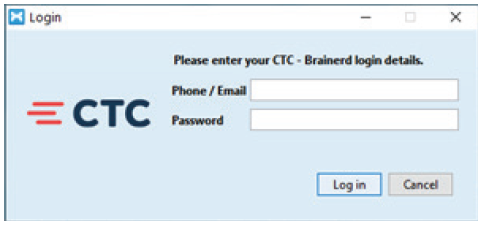
- Enter your 10-digit phone number and password, then click “Log In”
- Accept the License Agreement
- MaX UC for Desktop has been successfully installed
Menu Options
- Click “File” for:
- Change Password
- Mute Notifications: Calls and chat messages
- Add Contact
- Sign Out of Chat
- Quit: Close MaX UC
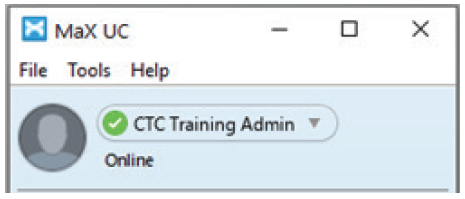
- Click “Tools” for:
- Options: Manage preferences for calls, chats, and contacts (see Options and Settings section below)
- Call Park: Park or retrieve parked calls from the Call Park Orbits
- Call Manager: Access Call Manager settings, rules, schedule, etc.
- Apps: Download MaX UC
- View Account: Manage account settings for calls, messages, notifications, or group mailboxes
- Click “Help” for:
- Check for Updates: Download updated versions of MaX UC
- Help: Open to online MaX UC guide
- Send Feedback: Send feedback on the application
- About: View MaX UC software version
Contact Tabs
- Favorites Tab: View contacts that have been designated as favorites
- Right-click a contact and select “Add to Favorites” or “Remove from Favorites”
- Favorite contacts are denoted with a star icon
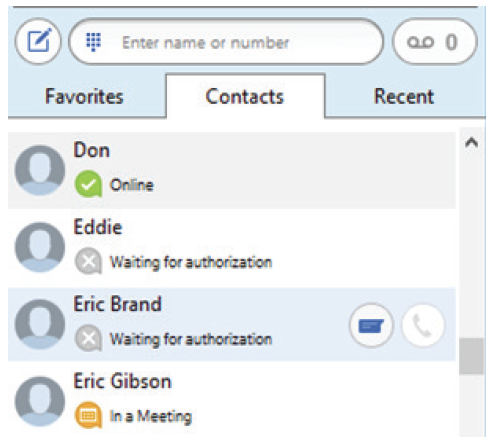
- Contacts Tab: View all users of your business group, along with contacts synchronized with Microsoft Outlook, if desired.
- Shows presence of desk phone users as “On the Phone” when user is on the phone
- Shows presence of other MaX UC Desktop or Mobile Communicator users as “Online”, “Offline”, “Away”, or “Busy”
- Mouse over a contact to display contact options:
- Double-click the contact to place a call to th econtact’s primary number
- Click “Call” to select the number to call when the contact has multiple numbers
- Click “Chat” to send a chat message to the contact
- Double-click the contact to place a call to th econtact’s primary number
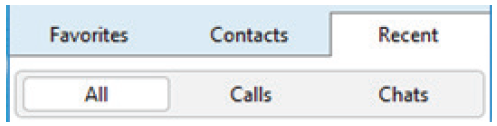
- Recent Tab: View All (calls and chats), Calls (calls only), and Chats (chats only)
Make a Phone Call
- There are several ways to place a call:
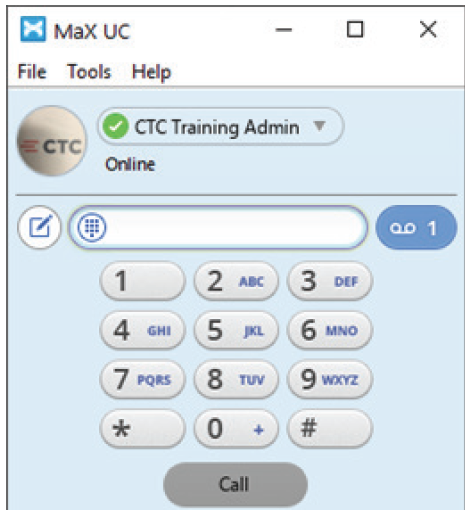
- Use the Dial Pad: Click on the dial pad icon and click the number keys to enter the phone number. To place the call, click the green “Call” button.
- Use the Enter Name or Number field:
- Enter a name – matching entries from Contacts will appear. To place the call, click on the matching entry, click the Call button, or press Enter on the computer keyboard.
- Enter a 10-digit phone number. To place the call, click the green Call button or press Enter on the computer keyboard.
Note: MaX UC should not be used for emergency 911 calling. MaX UC will complete the 911 call; however, the call will show the address of the business office where the hosted HPBX is installed.
Receive a Phone Call
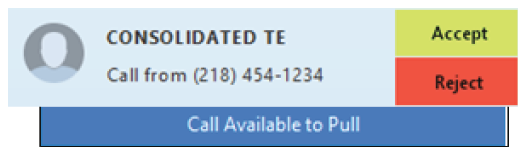
- When a call is being received, a popup displays the name of the caller
- Click the green “Accept” button to answer the call; or
- Click the red “Reject” button to decline the call
- Declined calls are routed according to the line’s Call Manager settings, most commonly to the lines voicemail box
Pull Call Using MaX UC Desktop
- To pull an active call from your desk phone/mobile device to MaX UC for Desktop:
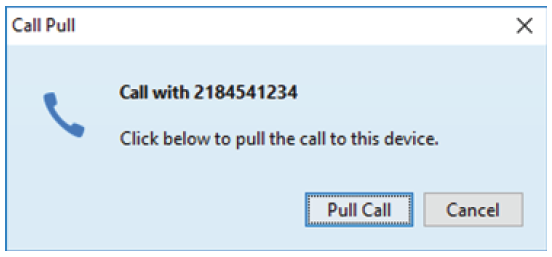
- Click on the “Call Available to Pull” message that is displayed at the bottom of the window
- Click “Pull Call” to pull the call to MaX UC Desktop
Note: When Direct Calling setting is OFF, “Call me on” setting in Tools > Options > Calls must be set to “Account Phone”
In-Call Options
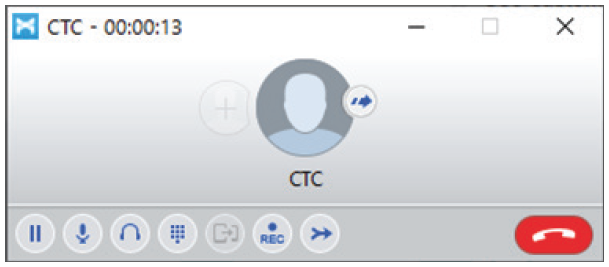
- A popup screen displays the Caller ID name and the duration of the call
- Click the buttons on the popup screen to:

Place the call on hold

Adjust the microphone volume

Adjust the headset volume

Open the dial pad

Push call to another device – all configured devices/phones will ring and the call will be transferred to the first-answered device

Record the call (recorded calls are saved to the hard drive location specified in Tools > Options)

Park the call

Add participant (conference call)

Transfer the call
- Click the red End Call button to hang up
Voicemail Messages
- The Messages icon displays the number of new voice mail messages
- Click Messages to open the Messages screen
- Click the Messages tab to view a list of voice mail messages:
- To play a message, click the Play icon
- To delete a message, click the Delet icon
Send and Receive Chat Messages or SMS (if subscribed)
Send Chat messages to other MaX UC users within your business group:
- Within Contacts, click the Chat icon on the contact to start chat with them
- A Chat window appears. Enter text in the Send Chat section at bottom, then press Enter on the computer keyboard to send the message. Reply messages will appear in the window above.
- Click Attachment to select a file to attach and send to the contact
- Click History to view the Chat History with this contact
- Click Call to call the contact
Send SMS messages to cell numbers:
- Click on the Chat icon
- Click the “+” symbol
- Either enter a name from the contacts and select a number, or enter the 10-digit number.
Options and Settings
Click on Tools and select Options to access the following settings:
- General: General settings, contacts, recordings, analytics, and accessibility options
- Calls: Call settings, rigntone and direct calling options
Note: Turn the Direct Calling feature off for a better experience when using MaX UC for Desktop with a desk phone. Incoming calls will not rign MaX UC for Desktop and outgoing calls will be made using click-to-dial. If you are not using a desk phone, turn the Direct Calling feature on to make and receive calls from MaX UC for Desktop directly (this is soft-phone mode).
- Chat: Chat settings, display, notifications, and status options
- Audio: Audio settings, microphone, in-call audio, notifications, and headset button options
Support
For additional help, contact our support team at 218-454-1234.
