
MaX UC Mobile – User Guide
Download MaX UC
- Using a mobile device or table, go to the Google Play Store (for Android devices) or the Apple App Store (for Apple devices).
- Search for “MaX UC”
- Download the free application
Configure MaX UC
- Tap the MaX UC icon on your home screen to open MaX UC.
- Tap Log In
- Choose Carrier: Select “CTC – Brainerd”
- Tap “Accept & Continue” to agree to the terms of use.
- Phone Number: Enter your assigned 10-digit phone number on the Cloud IP Phone System and the password provided by CTC.
- Tap “Log In”
- Move Calls to Mobiel (mobile devices only): Enter your 10-digit mobile number and tap “Continue”
- After a brief tour, MaX UC will open.
Log In to MaX UC
- Tap the MaX UC icon on your home screen to open MaX UC
- Tap “Log In”
- Phone Number: Verify the 10-digit phone number is correct
- Password: Enter the password.
- Remember password: Enable if desired.
- Tap “Log In”
Contacts
Tap the “Contacts” menu icon in the bottom-left corner of the screen to view all users of your company’s phone system, along with contacts saved on the mobile device, if desired.
- Presence of desk phone users displays as “On the Phone” when on the phone (only when logged into MaX UC).
- Presence of other MaX UC Desktop or MaX UC Mobile users displays as “Online”, “Offline”, or “Busy”.
- Tap a name in the list to view contact details, mark the contact as a Favorite (upper right), or to call, send a chat message, or to SMS the contact.
Note: SMS will utilize your cell service to send a message, displaying your cell number, additional charges may apply from your cellular carrier.

Call History and Messages
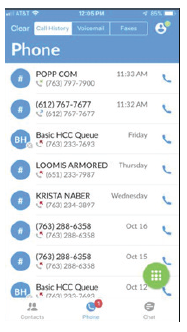
- Tap the Phone menu icon in the bottom-center of the screen.
- Tap one of these options at the top of the screen to view
- Call History
- Lists calls that were outbound, inbound, and missed calls.
- Tap a name or phone number to dial the number with MaX UC.
- Voicemail
- View and manage voice mail messages.
- Tap a message to open it and then tap Play.
- Tap More and select Delete Message to delete.
- Call History
Make a Phone Call
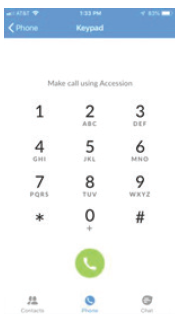
- Tap the Phone menu icon in the bottom-center of the screen.
- Tap Dialer to open th edialer keypad
- Dial the 10-digit phone number and tap Call to place the call.
Note: MaX UC cannot be used for 911 emergency calling. When installed on a smartphone, MaX UC will route 911 call through the cellular phone network. On a tablet, MaX UC will notify the user that 911 calls cannot be completed.
Receive a Phone Call
- MaX UC must be active in order for inbound calls to rign the mobile device.
- When an incoming call is received, MaX UC will display the calling party’s telephone number and name when available
- Tap Accept to answer the call
- Tap Decline to decline the call
- Declined calls are routed according to the line’s Call Manager settings, most commonly to the line’s voice mail box on the Phone System.

Pull Call Using MaX UC Mobile
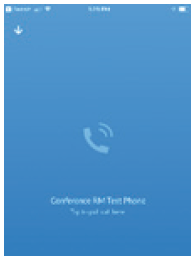
Two ways to pull an active call from your des phone or MaX UC Desktop to MaX UC Mobile:
- Tap “Call available to pull” message that is displayed at the bottom of the screen.
- Tap the Phone icon.

In-Call Options
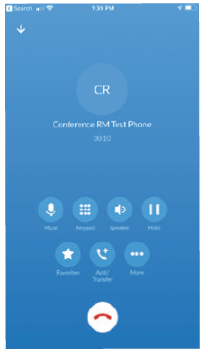
While a call is in progress, the following options are available:
- Mute: Mutes your voice
- Keypad: Opens dial pad
- Speaker: Places call on speakerphone
- Hold: Places caller on hold
- Favorites: Open a list of contacts you have designated as Favorites (if any). Tap and drag a contact onto the left side of the screen to add them to the call.
- Add/Transfer: Dial another number to add another party to the call or transfer caller to another number.
- Tap Switch and then tap one of the following options to push the call to either:
- This Device: (cell) (e.g. if WiFi connection is poor or when leaving a cellular data coverage area). MaX UC will place the call on Hold while it dials the cellular phone number of the mobile device. When the cellular call is answered, the conversation continues via the cellular connection. The Switch option appears while In-Call when the “Cellular Number” field is populated with a 10-digit phone number in the Settings menu.
- Another Device: Will ring all numbers configured in Settings > My Phones. When the call is answered, the conversation continues on the answered device.
- Tap Switch and then tap one of the following options to push the call to either:
- End Call: Tap Phone icon to end the current call.
Send and Recieve Chat Message
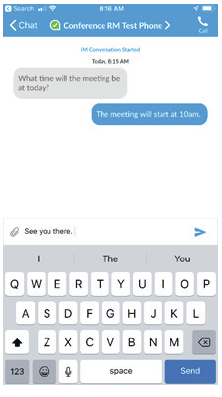
Tap the Chat menu icon in the bottom-center of the screen. Send chat messages to other MaX UC users on the Cloud IP Phone System.
- Tap the green New Chat icon in the bottom-right to start a new Chat by searching for a contact name, then entering a message.
- While in a chat, select the paperclip Attachment icon to select and send a file to the other MaX UC user.

Profile and Settings
Tap the Profile & Settings icon in the top-right of the screen to access Settings, Help, or to Logout.
- Tap Call Manager to change the routing of incoming calls. Options include “Send All Calls to Voicemail”, “Ring Your Phone”, or apply rules as configured in the User Portal (Incoming Call Manager feature must be enabled by CTC)
Support
For additional help, contact our support team at 218-454-1234.
