
Quick Start Guide – Fire Stick
Getting Started
Welcome to CTC StreamTV! To get started, please call our office at 218-454-1234 to have our team create a CTC StreamTV account for you. You will be required to provide us with an email address. Once we’ve crated your account, you will receive an email from noreply@goctc.tv. Open the email and follow the instructions to complete your account set up. Please note the link within the email expires within 24 hours.
Once registered at stream.goctc.tv, set up your Amazon Firestick. Follow the manufacturer instructions and select your home’s wireless network to connect your device to when prompted.
If you don’t already have an Amazon account, you can use this guide to create an account before continuing this guide.
Download the CTC StreamTV app from the app store for your device. Easily find our app by searching “CTC StreamTV”.
Log in to the CTC StreamTV app for your device using the username (email address) and password you created on stream.goctc.tv at the beginning of this guide.
Fire TV Stick 4K Remote Control
- Power: Turns you TV on & off
- Navigation: Press up, down, left and right to move your cursor in those directions. The option you’re on is highlighted by color or size.
- Back: Returns you to the previous screen
- Playback controls: Control live TV and your video recordings using the video control buttons.
- Mute audio
- Volume control
- Menu: Gives you access to the features of your CTC StreamTV service.
- Home: Returns you to the Fire Stick Home menu.
- Select: Selects the highlighted screen option.
- Microphone & voice button: The microphone isn’t yet compatible with CTC StreamTV service, but it will help you search the Amazon App Store for apps. Just say “CTC Stream”.
The buttons on this remote are universal in function, however, the options available within the CTC app may be different than in other apps. Your remote may vary.

CTC StreamTV App
Sign In
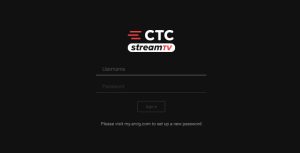
When accessing the app the first time, or to sign in after signing out, please enter the username and password you created on stream.goctc.tv.
1
On the sign-in screen, press Select to access the on-screen keyboard.
If you have signed in previously, the email address may be auto-filled.
2
Press left, right, up and down on the Navigation button to highlight letters, numbers and symbols on the on-screen keyboard and press the Select button to enter the character.
To access capital letters and symbols, select those keys on the keyboard.

3
When done, press left, right, up and down on the Navigation button to highlight the Next key and press Select.
4
Repeat steps 2 and 3 to enter your password.
Sign Out
1
On live TV, press the Menu button to access the TV menus.
2
Press left or right on the remote’s Navigation button to highlight Profile and press Select.
3
Press up on the Navigation button to highlight the Settings menu icon (cog wheel) in the upper-right corner of the screen and press Select.
4
Press down on the Navigation button to highlight “Sign Out” and press Select.

5
A popup window will appear asking “Are you sure you want to sign out?”
Press Select to choose “Yes”.

Support
For additional help, contact our support team at 218-454-1234.
