
Programming a CTC Cisco or M remote to your TV
Cisco/M remotes can be programed to most TV’s following the quick programing steps in this article. Look at the bottom of your remote and verify that you have one with one of these two symbols.
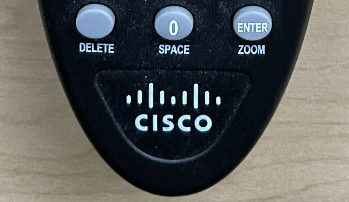
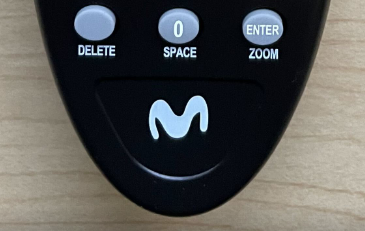
If you don’t have an Cisco or M remote click here to view programing instructions for our Arris remotes.
(Note: If your TV does not program with the auto search feature, please refer to the PDF attached to this article or call our helpdesk for assistance. 218-454-1234)
1
Read Instructions
Read through the instructions carefully before beginning, as the remote will time-out of the programming mode if you do not perform the steps fairly quickly.
2
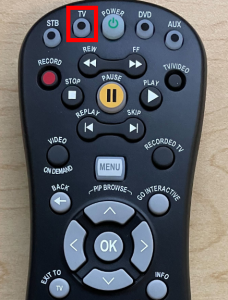
Locate the TV Key
3
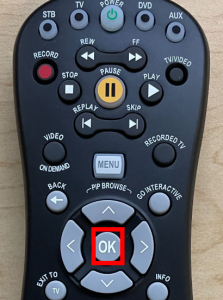
Locate the OK Key
4
Power On TV
Turn on your TV using the remote that came with your TV or your TV’s power button.

5
Aim Remote
Point the CTC remote at your TV.

6
Press and Hold the TV Key

While holding the TV key, press and hold the OK key.

7
Release Keys
Release both keys at exactly the same time.
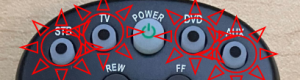
All mode keys at the top of the remote will flash twice indicating the remote is in programming mode.
If they do not flash, repeat steps 1-7.
8
Enter Code
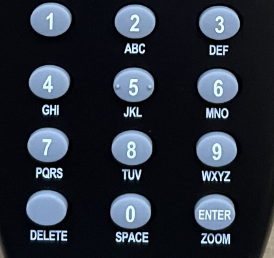
Enter programming code 922 on the number keypad.
The mode key will blink 3 times to indicate the auto search programming code was accepted.
If it does not blink 3 times, repeat the steps 1-8.
9
Point Remote
Point the remote at your TV and press the Play key.
If your TV does not turn off, repeat step 9.

10
Save Code
Once your device powers off, press the Enter key to save the code.
Enter is located below the #9 key on the keypad.

11
Programming Complete
Programming is complete! You may now use your remote to control your TV.
Support
For additional help, contact our support team at 218-454-1234.
